
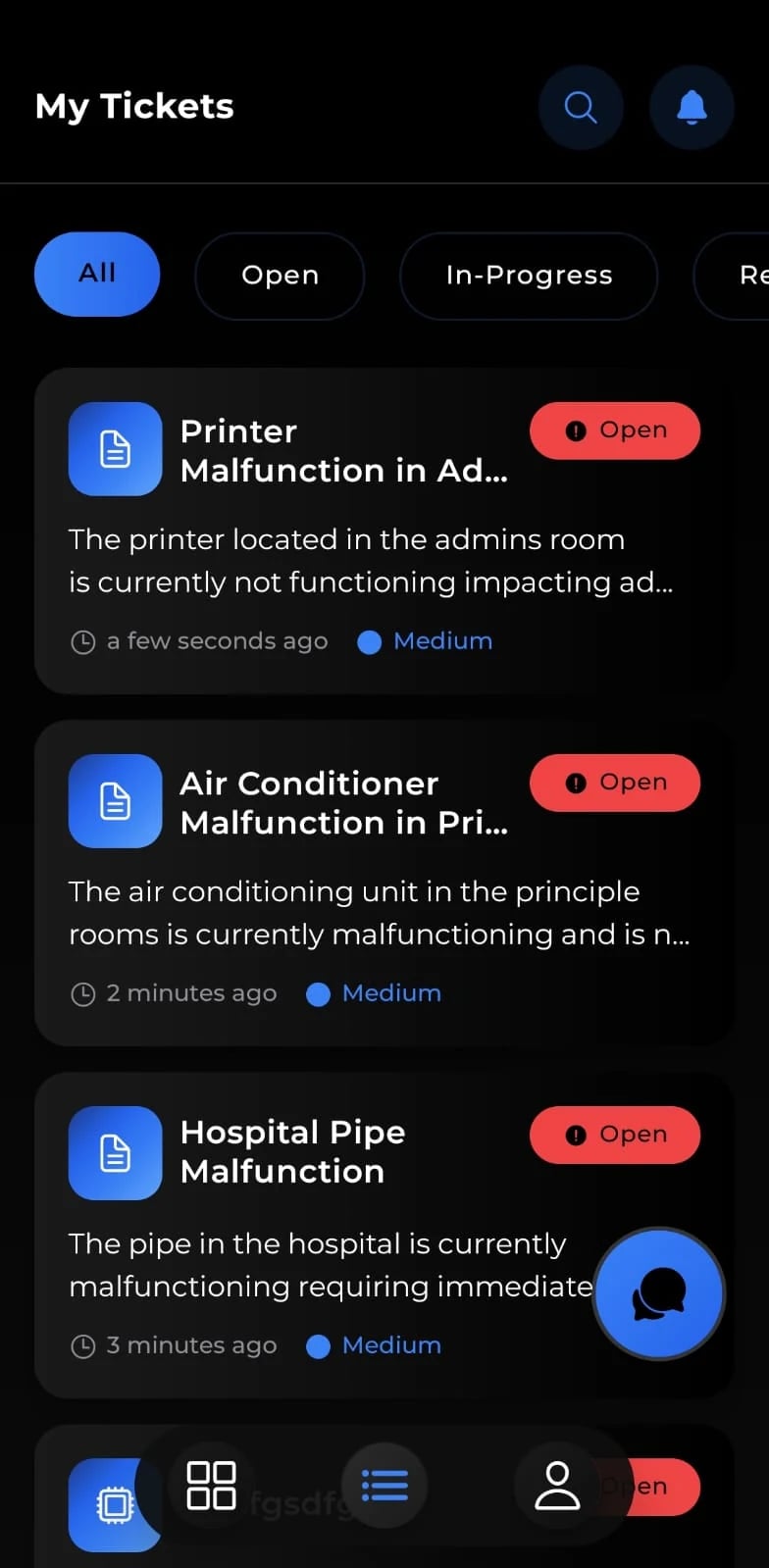
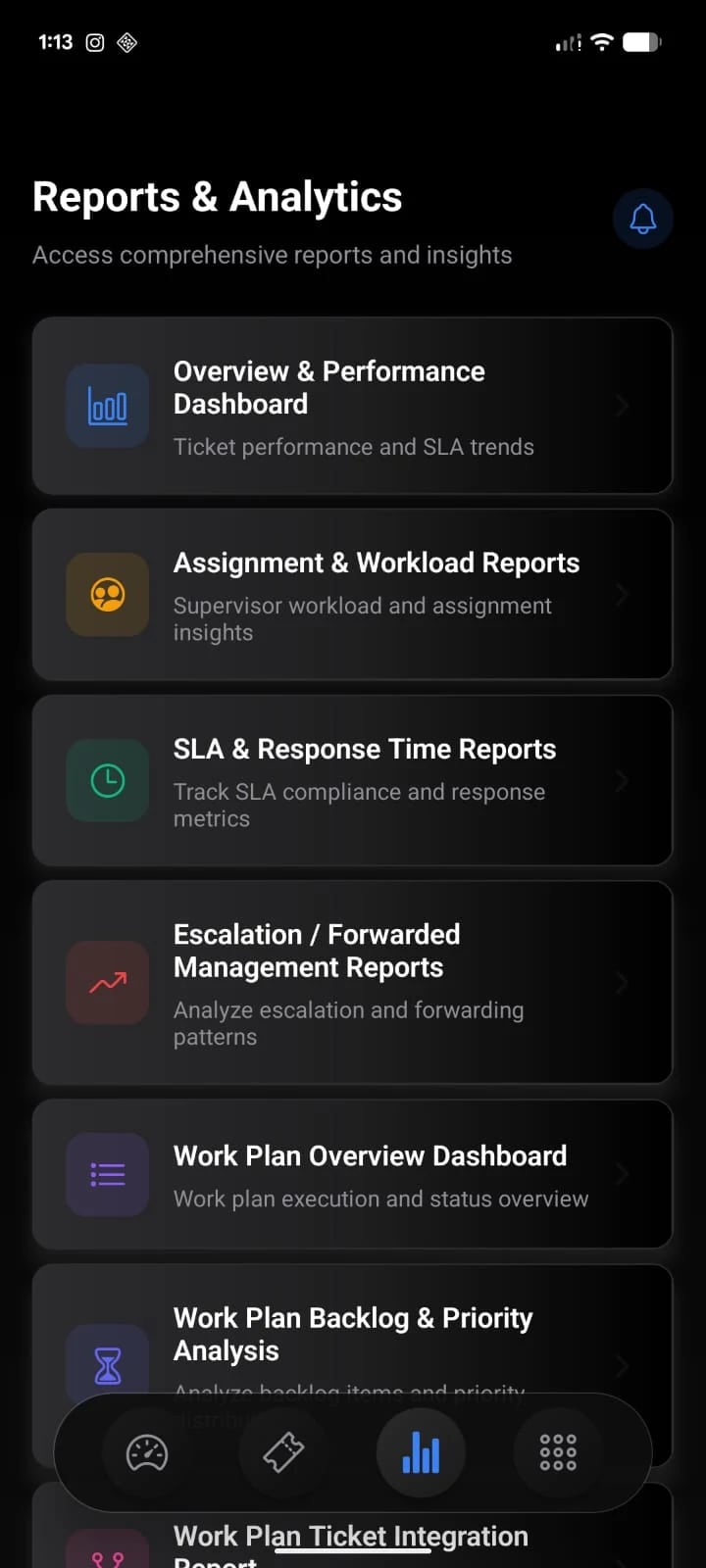
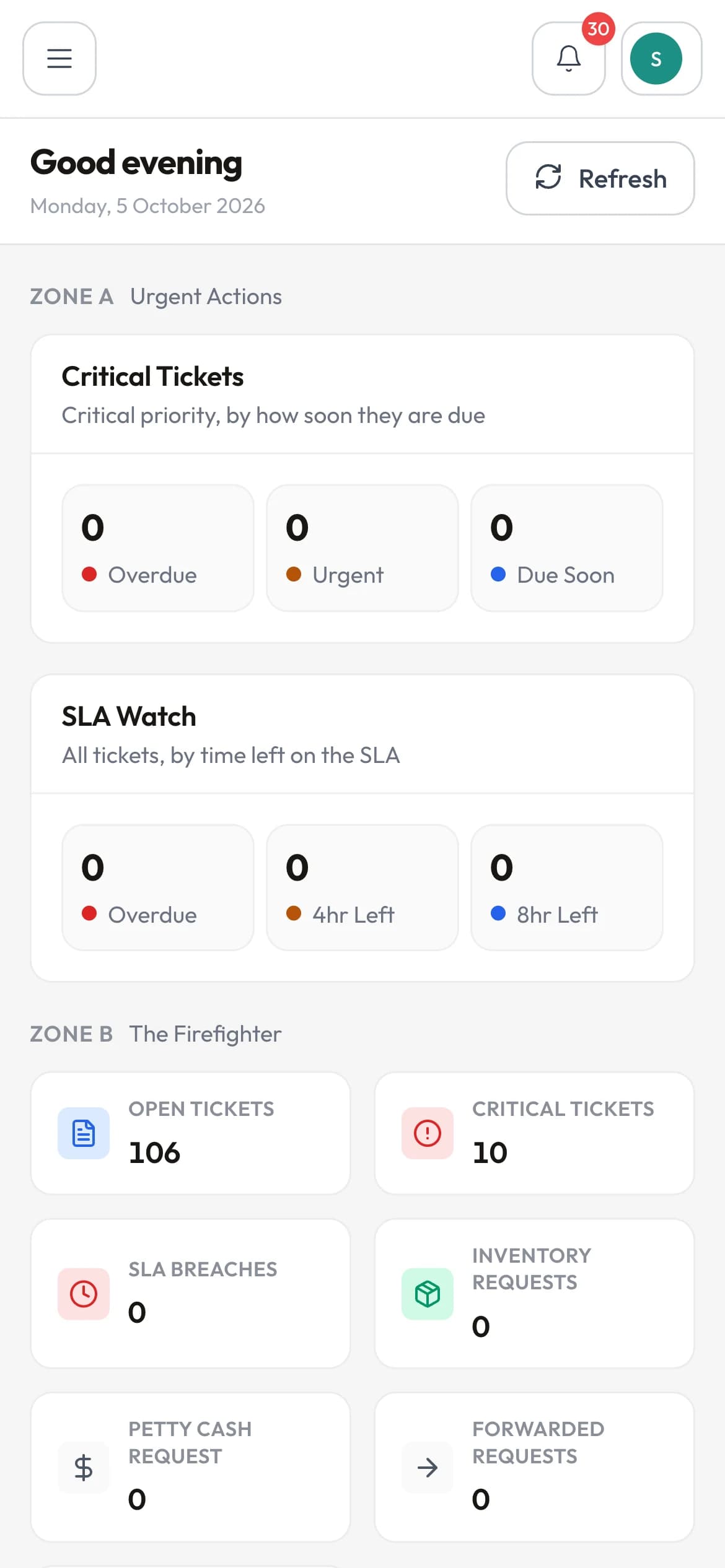
The web console on a phone
The administration console is itself responsive. On a phone, lists become cards, filters and drawers fill the screen and controls grow to a size a finger can use.
Mobile apps
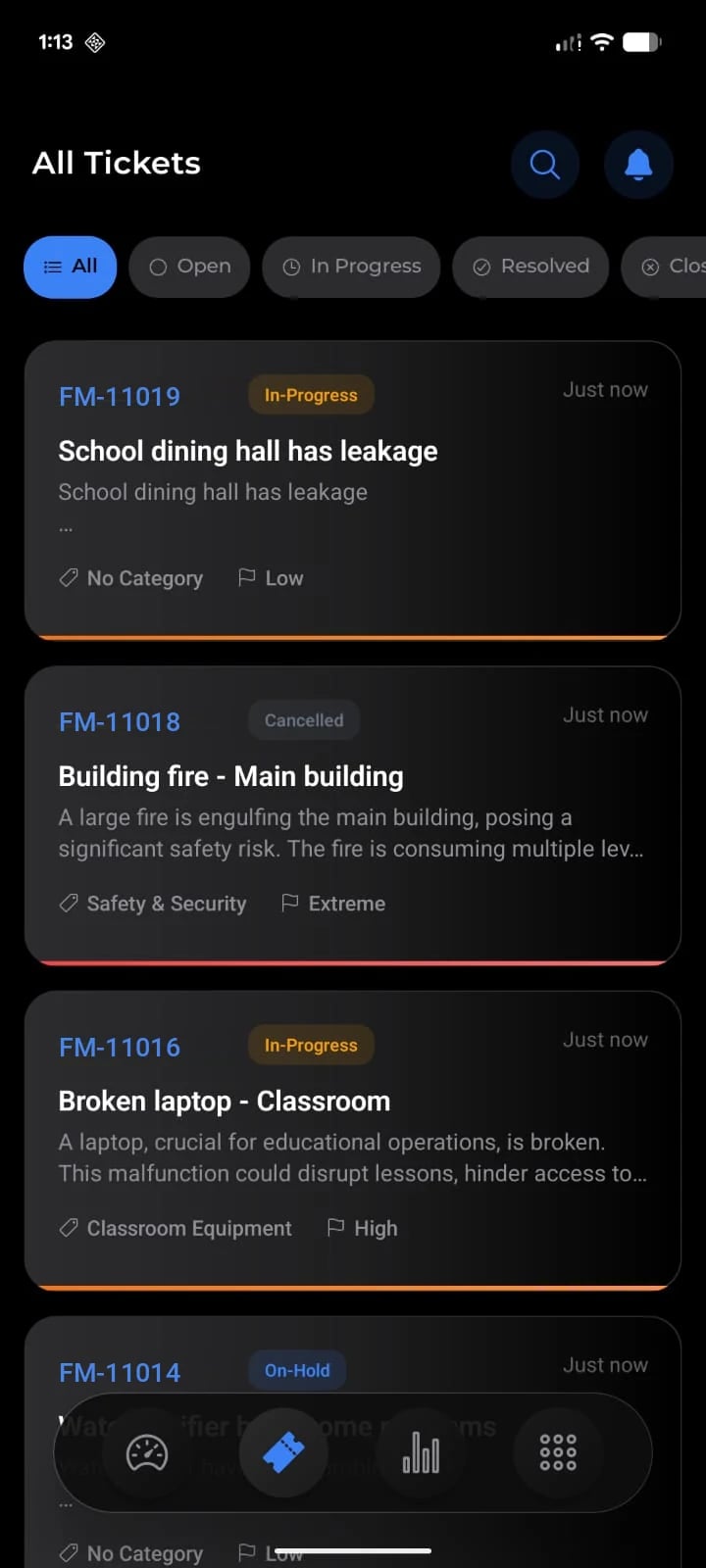
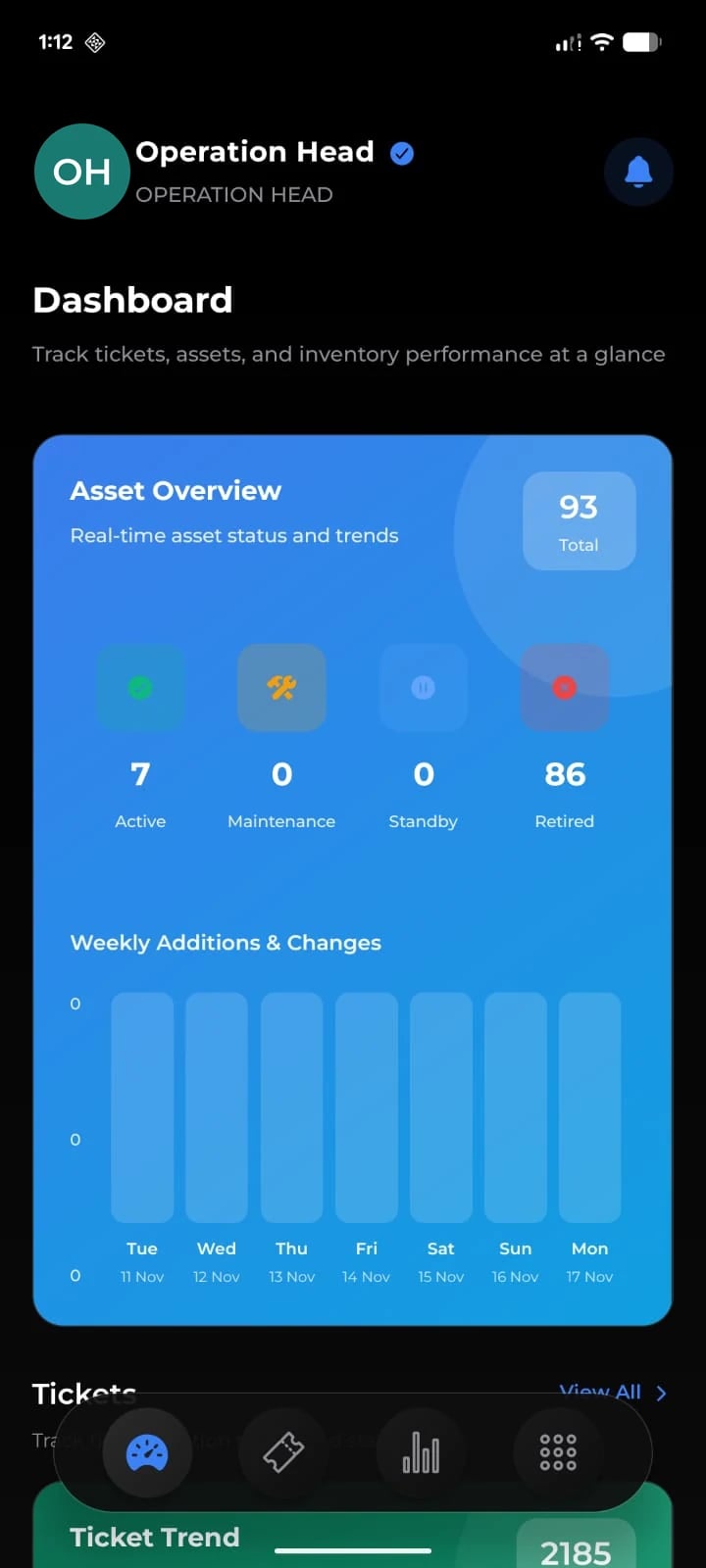
FM360AI ships four apps for iOS and Android, each built for one kind of user, so a technician sees jobs and a requester sees a report button, not a cut-down copy of the admin console.
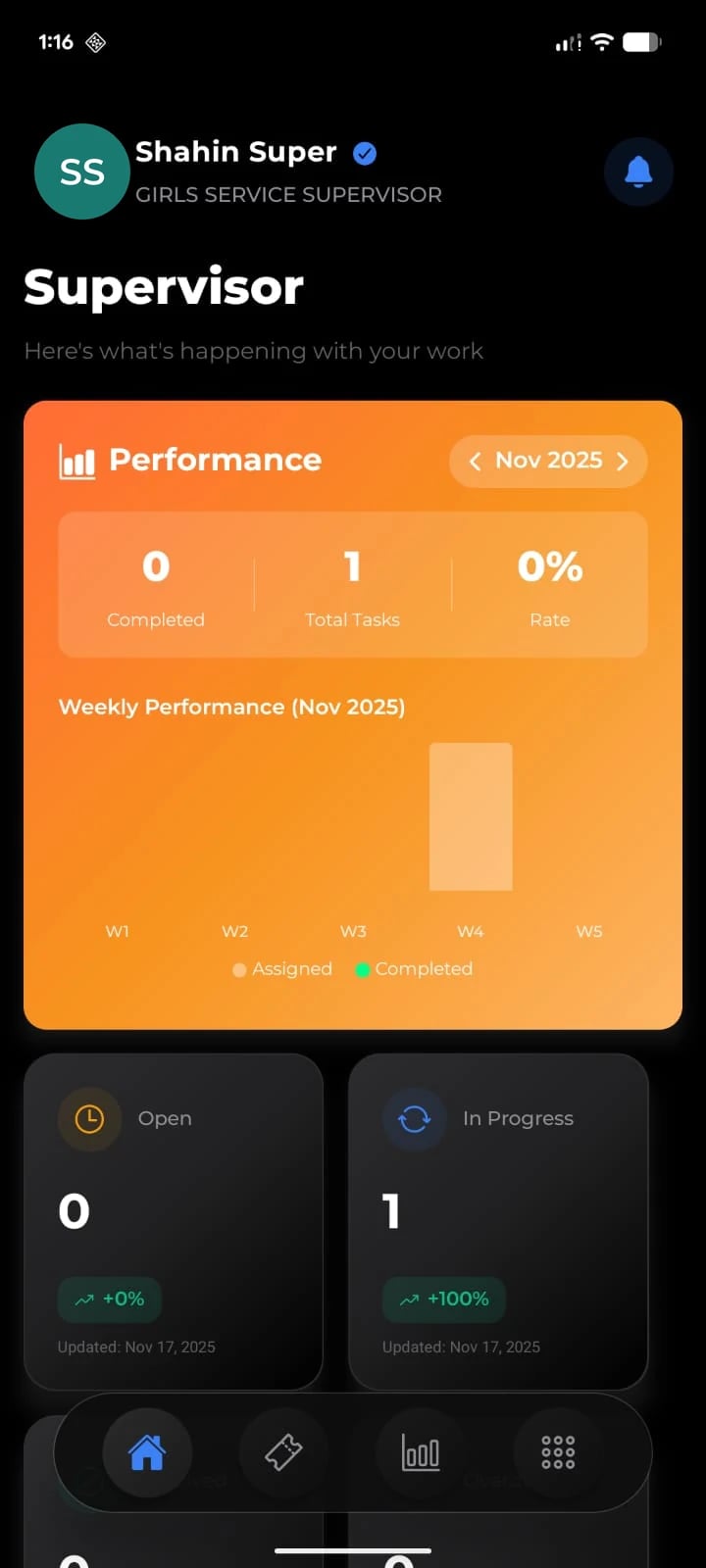
The four apps
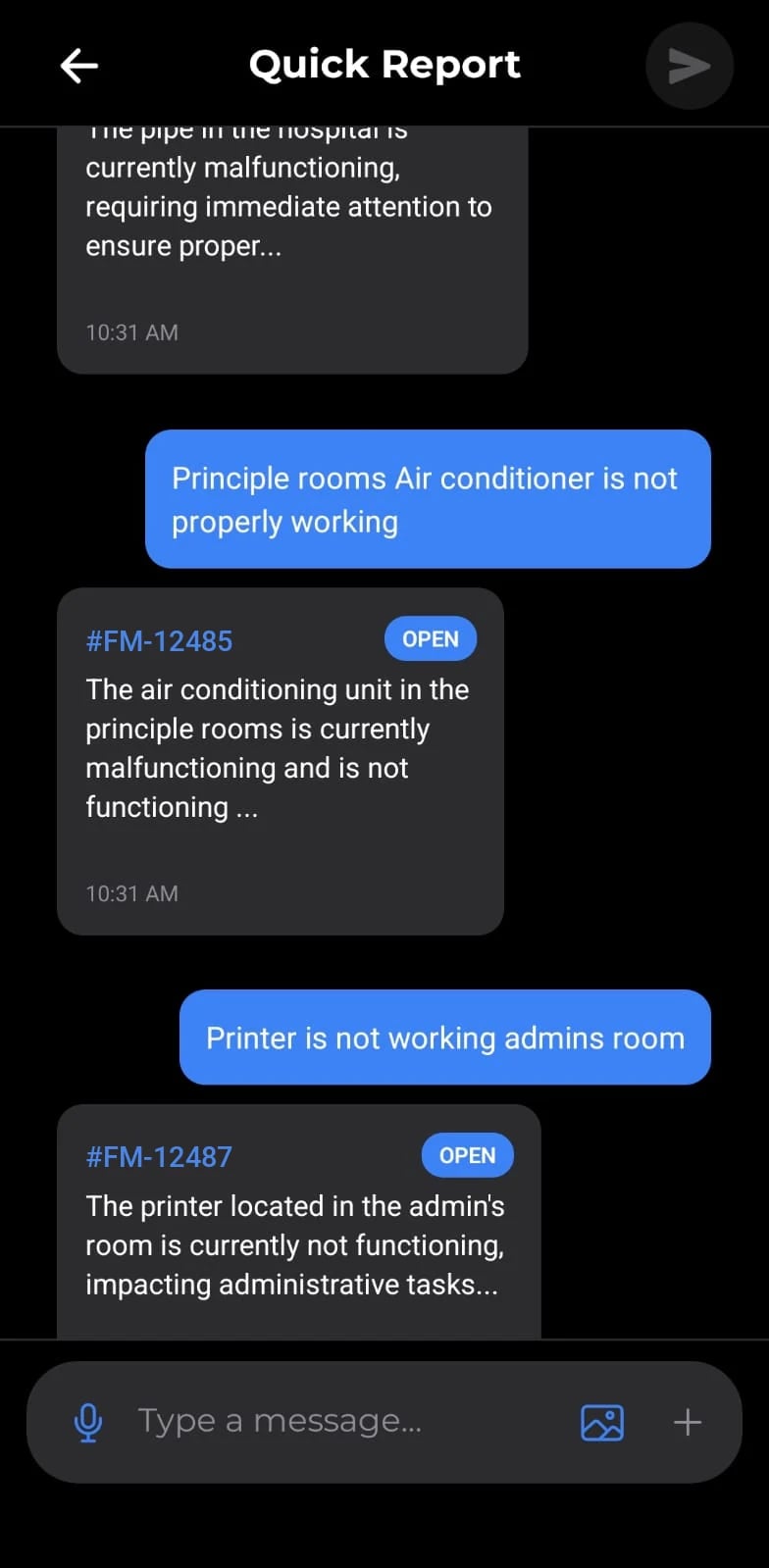
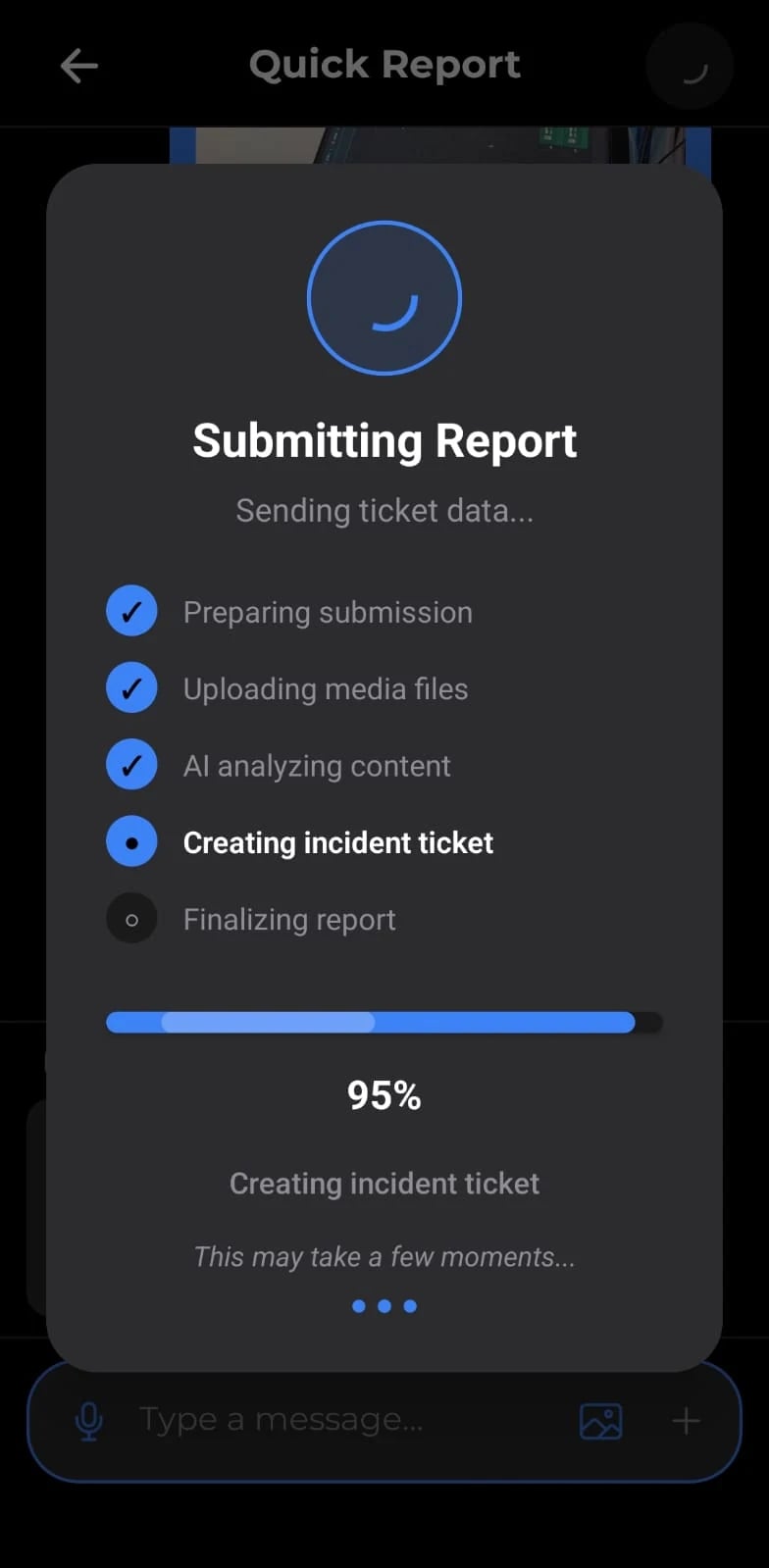
Staff and occupants
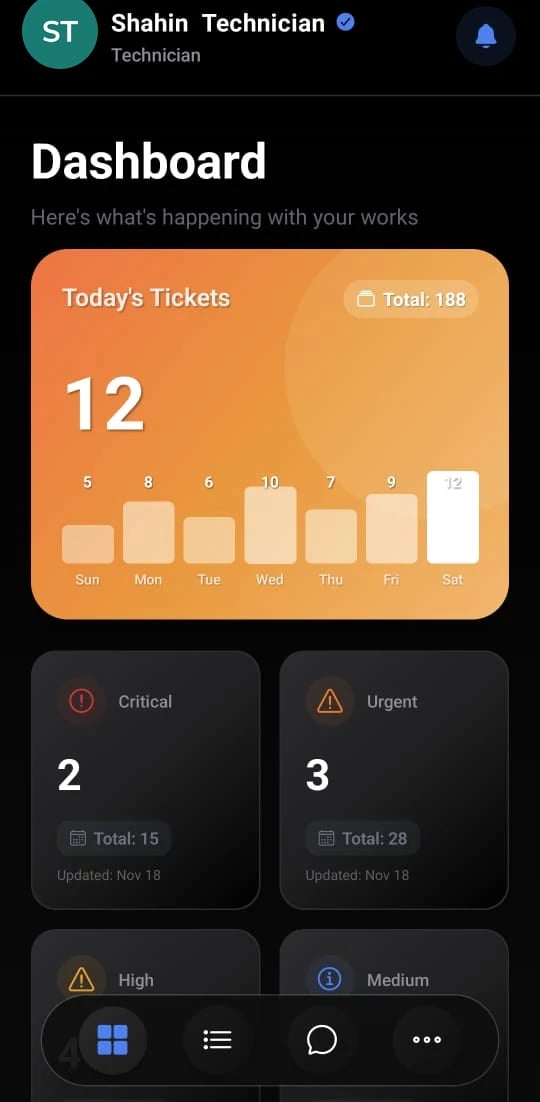
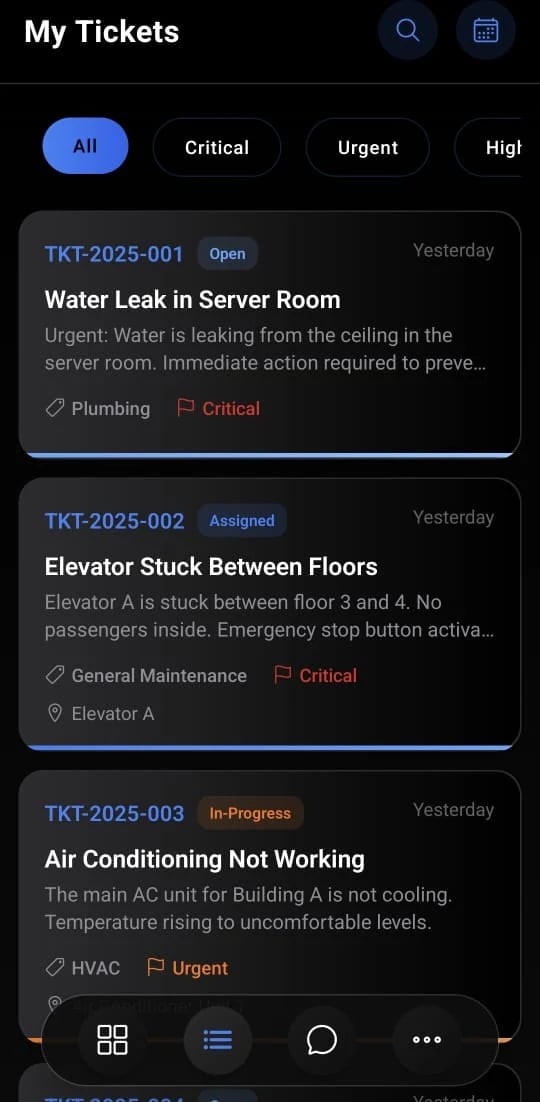
Maintenance and service technicians
Supervisors, FM managers, heads
Cleaning and security staff
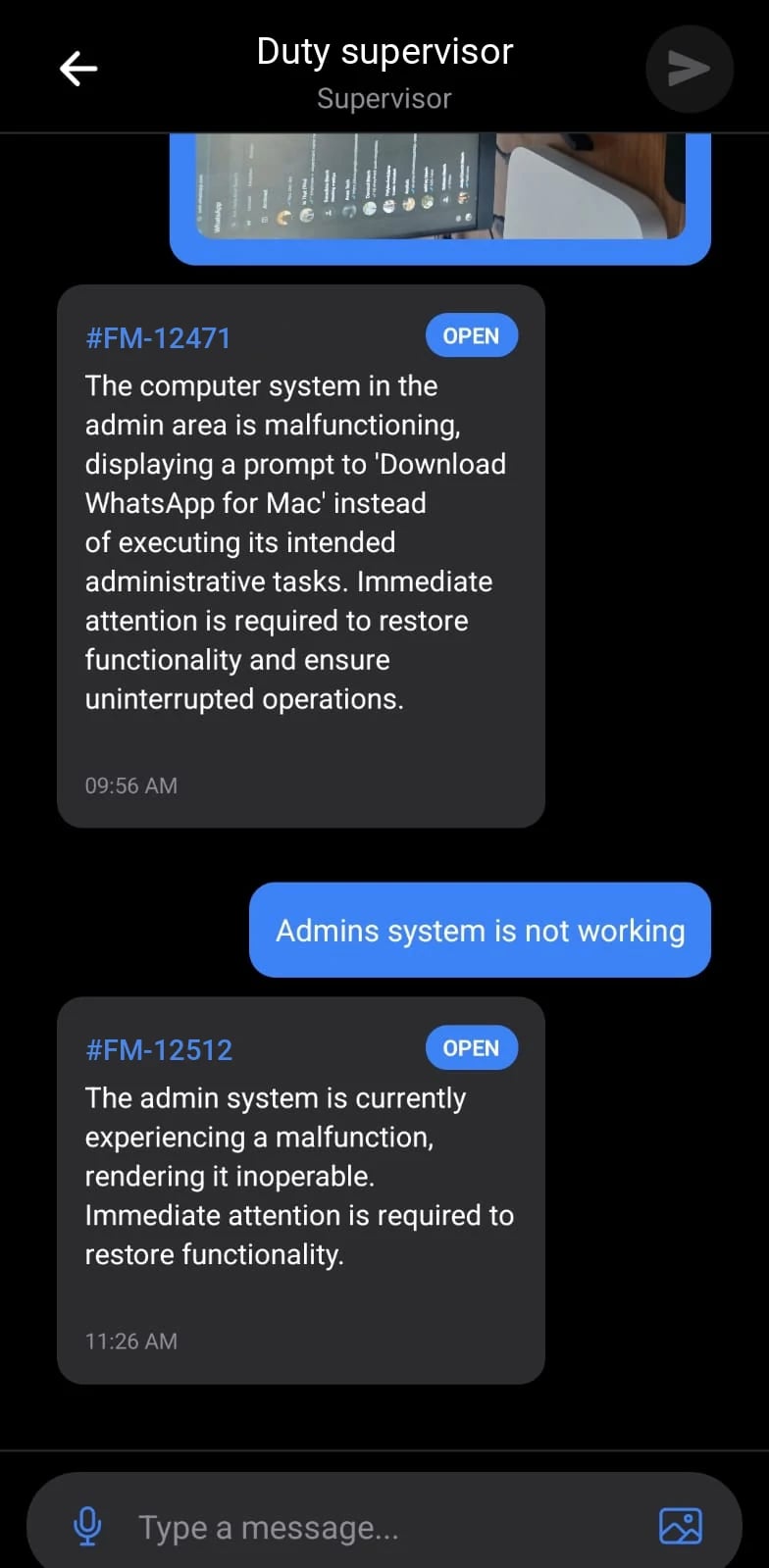
Screens are from the iOS and Android apps. Logos, ticket prefixes and profile photos were replaced before publishing.
The problem
If the only way to record work is a desktop screen in the office, the record is written hours later by someone who was not there.
What FM360AI does
The administration console is itself responsive. On a phone, lists become cards, filters and drawers fill the screen and controls grow to a size a finger can use.
Staff describe a problem in their own words and add up to five photos, short videos or voice notes with a note of where it is. AI creates and classifies the ticket. They can follow status, see who is assigned, comment, book rooms and request after-hours access.
Technicians see today's tickets by priority and by date. A before photo is required to start work, required checklist steps and an after photo to complete it. They can request petty cash and stock from the ticket.
Supervisors, FM managers, FM heads and operations heads each get a dashboard for their role. They create and assign tickets, forward, escalate, review evidence and close, watch live SLA countdowns, and approve quotations, purchase orders, invoices, petty cash and stock requests.
Cleaning and security staff pick their supervisor and send a quick report with a photo, video or voice note. Security staff also complete after-hours access requests by scanning the requester's QR code.
Assignments, work started and completed, closures, comments and approval requests arrive as push notifications in every app. Sessions can be ended remotely, for example when a password is changed.
How it works
A push notification announces the assignment and opens the ticket.
The technician photographs the fault. Start Work stays locked until they do.
Each required step is completed with a written note of what was done.
If the job needs cash or parts, the request is raised from the ticket.
The finished work is photographed and marked complete for the supervisor to review.
The scope and limits of this part of the product, so there are no surprises later.
Each role needs a different thing from its phone. A requester needs a fast way to report. A technician needs today's jobs and what completes them. A manager needs approvals and numbers. Separate apps keep each one simple, and each has its own sign-in limited to that role.
Yes. All four are built for iOS and Android.
The app will not start a job without a before photo, and will not complete it until every required checklist step is answered and an after photo is attached. The ticket then waits for a supervisor to review the evidence and close it.
Yes. The supervisor and manager app has an approvals queue for quotations, purchase orders, proforma invoices, invoices, payment requests and service contracts, each with its line items, totals and approval timeline.
No. The apps need a data connection to load and submit work.
Tell us how requests reach your team today and what you maintain. We will walk you through the product on a call, using the workflows that matter to you.